[Solved] How to Record YouTube Live Streaming Video
SOURCE: https://www.vidpaw.com/topics/record-youtube-live-streaming-video.html
Live streaming has become immensely popular since it first been around. It gives people a chance to be a creator as well as a presenter to directly interact with audiences and receive instant feedback. More importantly, live streaming takes less time to produce and helps showcase people's personalities more efficiently.
YouTube Live is a popular live streaming platform that provides certain tutorials on things people want to learn, interesting gaming, and sports stream. Although interacting in real-time is the biggest advantage, recording a YouTube live streaming video is still necessary, as it is difficult to process all the information in real-time.
In addition, even if the live stream video will be automatically archived by YouTube, it still has the chance to be deleted by the YouTuber. Therefore, to ensure you get a full live stream video so that you can watch on different devices, using a screen recorder is the best and feasible approach.
CONTENTS
Way 1. Record YouTube Live Videos on Windows/Mac
Way 2. Record YouTube Live Videos on iPhone/iPad
Way 3. Record YouTube Live Videos on Android Phone/Tablet
RecordAnyVid is a useful program that meets most of the users' screen recording needs.
1. It has good compatibility on both Windows and Mac.
2. Users can record YouTube Live videos in full screen or just record specific regions they want.
3. RecordAnyVid offers a lot of user-friendly tools. For example, it equips with a timer that enables users to set record length. And the Task Schedule feature allows users to start and end a recording at a specific time.
4. RecordAnyVid also supports multiple output formats including WMV, MP4, MOV, AVI, AAC, MP3, M4A and WMA. Users can choose to record video only or audio-only.
Below are the steps to record YouTube Live Streaming video with RecordAnyVid.
STEP 1. Download and proceed with installing RecordAnyVid.
Windows users should first choose the exact program suitable for your operating systems. RecordAnyVid offers a free trial version allowing users to try it before purchase it.
STEP 2. Customize your recording settings.
After successfully installing RecordAnyVid, launch the program. On its interface, RecordAnyVid provides three options, and click on to the "Video Recorder" section, then you can customize the recording area, system volume, and microphone volume on the panel.
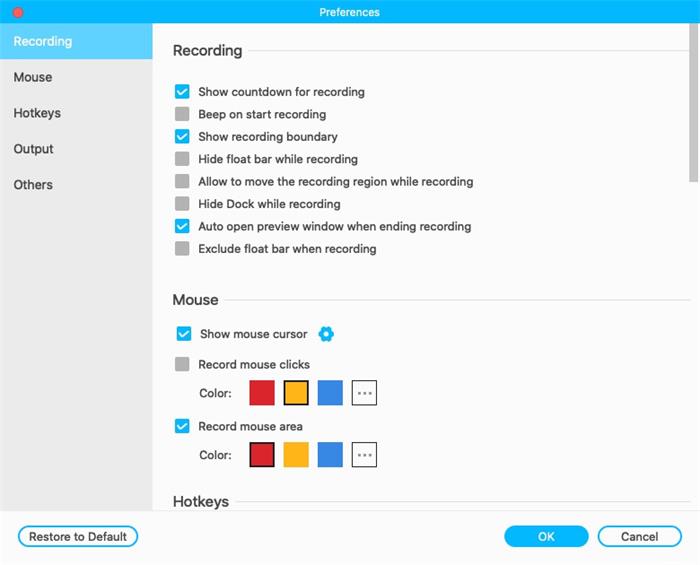
Click on to the setting icon then you can adjust more preference. For example, you can change the location of output files and the output format or customize hotkeys. You can also select whether to record mouse clicks.
STEP 3. Record YouTube Live video.
When you finish adjusting your settings, access to YouTube, then find and play the live stream video that you want to record. Click the "REC" icon and RecordAnyVid counts down from 3 to 1, then the recording begins.
STEP 4. Save the YouTube Live video.
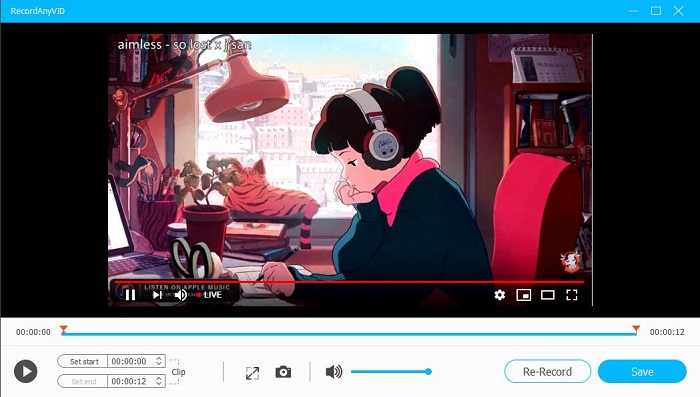
Click the red button on the recording bar to end the recording process. Now RecordAnyVid will navigate to a previewing window allowing you to preview and edit what you've recorded. Click "Save" when you finish the process and the YouTube Live video will be saved on your chosen output location.
And if you are not satisfied with the recording, just click the "Re-Record" button to restart.
You can also record YouTube Live videos on mobile devices. And recording YouTube Live videos on iPhone/iPad is super easy because iOS 11 and above have a screen recorder feature. However, devices under iOS 11 are advised to turn to a third-party screen recorder app in the App Store.
Here is how to record YouTube Live videos with the built-in screen recorder.
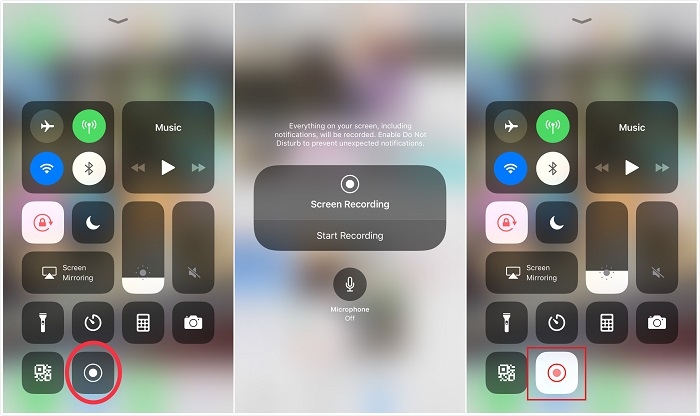
STEP 1. Head to "Settings" > "Control Center" > "Customize Controls", and look for "Screen Recording". Then tap the add-in icon to add the feature to appear in Control Center.
STEP 2. Swipe to open Control Center, then tap the record button to start recording. You can press and hold the record button if you want to enable your microphone to record audio.
STEP 3. Open the Control Center and tap the record button again to finish recording. And the screen recording video will be saved to Photos.
Besides, Android Q users can take advantage of the official version of the built-in screen recorder.
Although Android 10 has an official version of a built-in screen recorder, the feature is disabled by Google. However, you can manually unlock this feature by enabling the "Developer options".
STEP 1. Once enable the feature, you can use the new built-in screen recorder. Now swipe down to open Control Center, and tap the Start Screen Recording icon. After a 3-second countdown, the screen recording will start.
STEP 2. Tap the recording icon on the screen to stop the recording. And the screen recording will be saved in your default gallery. Besides, you can also add this feature to the Quick-open notification panel.
These are the methods to record YouTube Live streaming videos to different platforms. All are simple and convenient. You can choose anyone you like for recording your favorite YouTube Live videos, and even record live streaming videos on other platforms. And don't forget to share this article with your friends if you find it useful.
Live streaming has become immensely popular since it first been around. It gives people a chance to be a creator as well as a presenter to directly interact with audiences and receive instant feedback. More importantly, live streaming takes less time to produce and helps showcase people's personalities more efficiently.
YouTube Live is a popular live streaming platform that provides certain tutorials on things people want to learn, interesting gaming, and sports stream. Although interacting in real-time is the biggest advantage, recording a YouTube live streaming video is still necessary, as it is difficult to process all the information in real-time.
In addition, even if the live stream video will be automatically archived by YouTube, it still has the chance to be deleted by the YouTuber. Therefore, to ensure you get a full live stream video so that you can watch on different devices, using a screen recorder is the best and feasible approach.
CONTENTS
Way 1. Record YouTube Live Videos on Windows/Mac
Way 2. Record YouTube Live Videos on iPhone/iPad
Way 3. Record YouTube Live Videos on Android Phone/Tablet
Way 1. Record YouTube Live Videos on Windows/Mac
For people who love to watch YouTube Live videos on desktop, RecordAnyVid is an excellent choice to capture YouTube Live videos.RecordAnyVid is a useful program that meets most of the users' screen recording needs.
1. It has good compatibility on both Windows and Mac.
2. Users can record YouTube Live videos in full screen or just record specific regions they want.
3. RecordAnyVid offers a lot of user-friendly tools. For example, it equips with a timer that enables users to set record length. And the Task Schedule feature allows users to start and end a recording at a specific time.
4. RecordAnyVid also supports multiple output formats including WMV, MP4, MOV, AVI, AAC, MP3, M4A and WMA. Users can choose to record video only or audio-only.
Below are the steps to record YouTube Live Streaming video with RecordAnyVid.
STEP 1. Download and proceed with installing RecordAnyVid.
Windows users should first choose the exact program suitable for your operating systems. RecordAnyVid offers a free trial version allowing users to try it before purchase it.
STEP 2. Customize your recording settings.
After successfully installing RecordAnyVid, launch the program. On its interface, RecordAnyVid provides three options, and click on to the "Video Recorder" section, then you can customize the recording area, system volume, and microphone volume on the panel.
Click on to the setting icon then you can adjust more preference. For example, you can change the location of output files and the output format or customize hotkeys. You can also select whether to record mouse clicks.
STEP 3. Record YouTube Live video.
When you finish adjusting your settings, access to YouTube, then find and play the live stream video that you want to record. Click the "REC" icon and RecordAnyVid counts down from 3 to 1, then the recording begins.
STEP 4. Save the YouTube Live video.
Click the red button on the recording bar to end the recording process. Now RecordAnyVid will navigate to a previewing window allowing you to preview and edit what you've recorded. Click "Save" when you finish the process and the YouTube Live video will be saved on your chosen output location.
And if you are not satisfied with the recording, just click the "Re-Record" button to restart.
Way 2. Record YouTube Live Videos on iPhone/iPad
You can also record YouTube Live videos on mobile devices. And recording YouTube Live videos on iPhone/iPad is super easy because iOS 11 and above have a screen recorder feature. However, devices under iOS 11 are advised to turn to a third-party screen recorder app in the App Store.
Here is how to record YouTube Live videos with the built-in screen recorder.
STEP 1. Head to "Settings" > "Control Center" > "Customize Controls", and look for "Screen Recording". Then tap the add-in icon to add the feature to appear in Control Center.
STEP 2. Swipe to open Control Center, then tap the record button to start recording. You can press and hold the record button if you want to enable your microphone to record audio.
STEP 3. Open the Control Center and tap the record button again to finish recording. And the screen recording video will be saved to Photos.
Way 3. Record YouTube Live Videos on Android Phone/Tablet
Besides, Android Q users can take advantage of the official version of the built-in screen recorder.
Although Android 10 has an official version of a built-in screen recorder, the feature is disabled by Google. However, you can manually unlock this feature by enabling the "Developer options".
How to Enable Developer Options in Android?
STEP 1. Once enable the feature, you can use the new built-in screen recorder. Now swipe down to open Control Center, and tap the Start Screen Recording icon. After a 3-second countdown, the screen recording will start.
STEP 2. Tap the recording icon on the screen to stop the recording. And the screen recording will be saved in your default gallery. Besides, you can also add this feature to the Quick-open notification panel.
In the End
These are the methods to record YouTube Live streaming videos to different platforms. All are simple and convenient. You can choose anyone you like for recording your favorite YouTube Live videos, and even record live streaming videos on other platforms. And don't forget to share this article with your friends if you find it useful.


Comments
Post a Comment