How to Convert OGG to MP3 Without Hassle
SOURCE: https://www.vidpaw.com/topics/convert-ogg-to-mp3.html
OGG, which is a file format that can be used to store both video and audio, is widely used today because it can save the audio sound with high quality but in a comparatively smaller size. Therefore, people can enjoy high-quality songs stored in OGG format. But the fact is that, OGG is not supported by all media players, but MP3 does. So you may want to convert the OGG to MP3 when you want to play the songs or audios on some players or devices. In the following, you will get the best way.
Part 1. [Best] The Most Professional Tool to Convert OGG to MP3 Losslessly
The best tool I want to recommend is ConvertAnyVid, which is your perfect choice to let you convert OGG format to MP3. It is a mature video converter offering 300+ output formats for free selection, so you can choose to convert your possessing video/audio to different formats such as MP3, MP4, MOV, AVI, M4A, etc. What 's more, you can find that CovertAnyVid has sorted the output formats according to different devices, so the selection is more easily.
What's more, the output quality is good. It can convert the video and audio to high quality easily. Here is how to use ConvertAnyVid to convert OGG to MP3.
Convert OGG to MP3 Efficiently and Losslessly
STEP 1. Install ConvertAnyVid
Go to the official place to find and download ConvertAnyVid to your computer.
Pay attention to select the right version like the Windows or Mac one.
Also, choose the paid or free version you need.
Then follow the instruction to install it.
STEP 2. Add OGG File to ConvertAnyVid
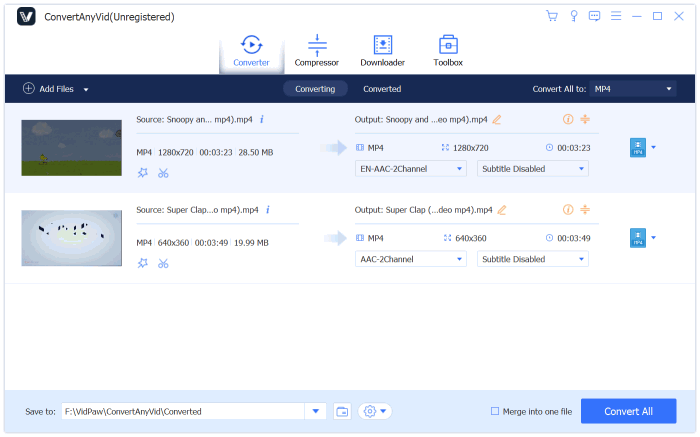
Then launch ConvertAnyVid on your computer. When you are in the program, you can click on "Add File" to choose the OGG file on your computer for importing to it.
You can also drag the OGG file for adding to ConvertAnyVid directly.
STEP 3. Choose MP3 to Be Output Fomrat
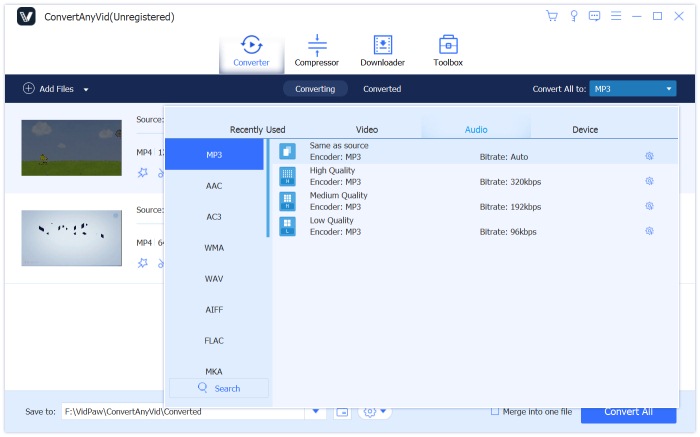
Let's choose the output format as MP3 now. The format selection place in the bottom in "Profile".
Just click to browse the format menu, find and choose MP3 format.
STEP 4. Convert OGG to MP3
If you want to choose an exact folder to save the converted file, just choose a folder in "Destination" section.
Finally, you can click the "Convert" button to convert OGG to MP3 format.
After the conversion is done, you can freely enjoy the song on your device.


Comments
Post a Comment