[Solved] How to Record Zoom Meeting with Audio on Windows/Mac
SOURCE: https://www.vidpaw.com/topics/record-zoom-meeting-with-audio.html
Zoom became the most popular software recently. Because of the outbreak of coronavirus, many companies and enterprises decide to make their employees work from home so that they can reduce the loss of the companies to be the lowest level. Consequently, all kinds of online working and communication tools are used by more people ever since. Zoom is one of them.
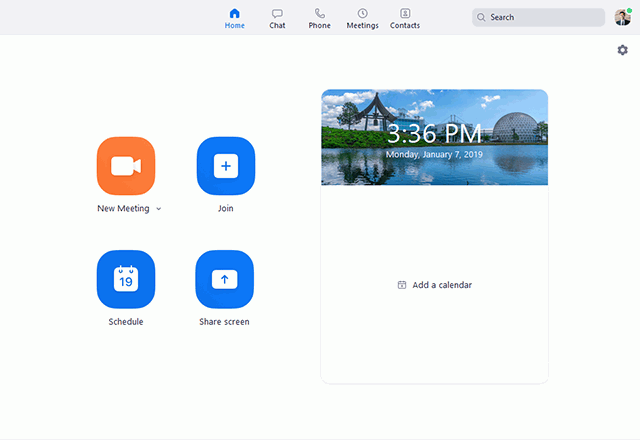
Zoom is a software mainly used for online communication, such as have an online meeting with more members. With the stable and smooth video as well as delivery, Zoom became a priority choice for many companies to hold a meeting with. But online meeting still has its shortcomings. For example, people may easily miss some important points put forward during the meeting. So they would want to record Zoom meeting with audio as a backup for second review. That's also why we set this blog here.
In the blog, we will offer you the guide on how to record Zoom meeting with audio on Windows/Mac. Read it and prepare for recording your next online meeting in Zoom!
CONTENTS
Part 1. Record Zoom Meeting Using Its Local Recorder
Part 2. Easily Record Zoom Meeting Using a Third-Party Screen Recorder
Part 3. More Solutions to Record Zoom Meeting with Audio on Windows/Mac
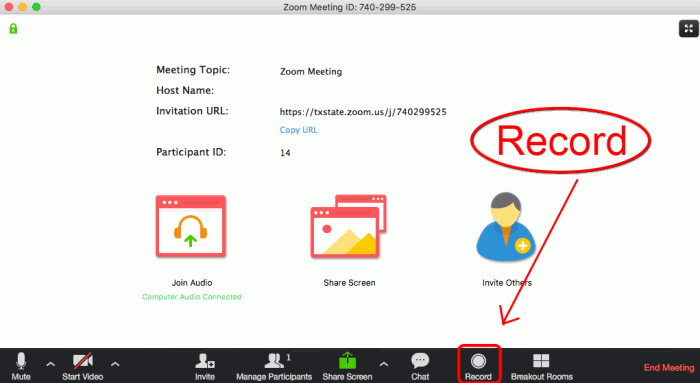
STEP 1. Because Zoom only allows the host and the person who has gained permission from the host to record the meeting, so make sure that you have the right to do so. If you do have the right to record Zoom meeting, click on the Record button in the toolbar after entering the meeting room in Zoom.
STEP 2. There are two options – one is Record on the Computer, and the other is Record to the Cloud. Choose where you want to save the recording and hit the option. Then Zoom will begin to record the meeting.
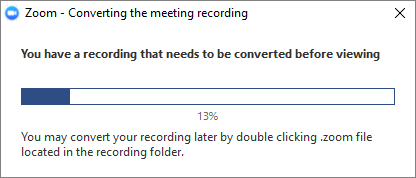
STEP 3. When the meeting is over, Zoom will convert the recording to a file so that you can access it on the cloud or on your computer later.
Note: You can stop the recording at any time during it is processing.
RecordAnyVid uses its professional and high-quality screen recording services to serve many users for capturing all kinds of screen activities since its launch. In these days when people’s demands to record online meetings, RecordAnyVid begins to show its great abilities and brings conveniences to these users. RecordAnyVid has these sparkling features and keeps bringing better services to all users with them:
Furthermore, with an intuitive interface and user-friendly interface, RecordAnyVid is quite simple for using to capture the whole online meeting. The following are the steps you should follow to record Zoom meetings on Win/Mac.

Note: Click the setting icon above Microphone and you can enter the Preferences section for editing the recording.
These ways are all helpful to record Zoom meeting when you need. If you want a free control on your right to record any computer screen, I recommend you to use the third-party screen recorders, because they are all customized and you can take full control of the meeting recording.
Zoom became the most popular software recently. Because of the outbreak of coronavirus, many companies and enterprises decide to make their employees work from home so that they can reduce the loss of the companies to be the lowest level. Consequently, all kinds of online working and communication tools are used by more people ever since. Zoom is one of them.
Zoom is a software mainly used for online communication, such as have an online meeting with more members. With the stable and smooth video as well as delivery, Zoom became a priority choice for many companies to hold a meeting with. But online meeting still has its shortcomings. For example, people may easily miss some important points put forward during the meeting. So they would want to record Zoom meeting with audio as a backup for second review. That's also why we set this blog here.
In the blog, we will offer you the guide on how to record Zoom meeting with audio on Windows/Mac. Read it and prepare for recording your next online meeting in Zoom!
CONTENTS
Part 1. Record Zoom Meeting Using Its Local Recorder
Part 2. Easily Record Zoom Meeting Using a Third-Party Screen Recorder
Part 3. More Solutions to Record Zoom Meeting with Audio on Windows/Mac
Part 1. Record Zoom Meeting Using Its Local Recorder
Zoom exactly knows what people need. So it is designed with a local recorder that allows people to record the online meeting directly without installing other software. It is not difficult to use this built-in recorder because Zoom makes all its features to be as simple as possible. The following is the tutorial to guide you how to record Zoom meeting directly.STEP 1. Because Zoom only allows the host and the person who has gained permission from the host to record the meeting, so make sure that you have the right to do so. If you do have the right to record Zoom meeting, click on the Record button in the toolbar after entering the meeting room in Zoom.
STEP 2. There are two options – one is Record on the Computer, and the other is Record to the Cloud. Choose where you want to save the recording and hit the option. Then Zoom will begin to record the meeting.
STEP 3. When the meeting is over, Zoom will convert the recording to a file so that you can access it on the cloud or on your computer later.
Note: You can stop the recording at any time during it is processing.
Part 2. [Tips] Best Solution to Record Video Conferences for Windows/Mac
As you can see, although Zoom is popular today and does help to improve efficiency during these times when people work from home, its disadvantages still bring inconveniences to some people. To overcome them, the best solution is to record the Zoom video conferences on PC using a more powerful third-party screen recorder. Then we bring RecordAnyVid.RecordAnyVid uses its professional and high-quality screen recording services to serve many users for capturing all kinds of screen activities since its launch. In these days when people’s demands to record online meetings, RecordAnyVid begins to show its great abilities and brings conveniences to these users. RecordAnyVid has these sparkling features and keeps bringing better services to all users with them:
- Record all online meetings and other screen activities with original quality as your screen shows;
- Output the recordings to popular formats such as MP4, MOV, etc.;
- Webcam mode and microphone can be turned on to record the whole meeting without missing any part;
- Hotkeys settings enable the recording process to be much simpler and more flexible;
- Highly compatible with all Windows systems and most macOS systems.
Furthermore, with an intuitive interface and user-friendly interface, RecordAnyVid is quite simple for using to capture the whole online meeting. The following are the steps you should follow to record Zoom meetings on Win/Mac.
STEP 1. Download and Install RecordAnyVid
RecordAnyVid offers both free and paid versions. The main purpose for the free version is to avail users to try the features. So it puts a restriction on the recording duration that users can only record for up to 3 minutes. Therefore, if you need to record the whole Zoom meeting, make sure you have subscribed for its full features. After you install the registered ver properly, launch RecordAnyVid.STEP 2. Set Zoom Conference Recording Options
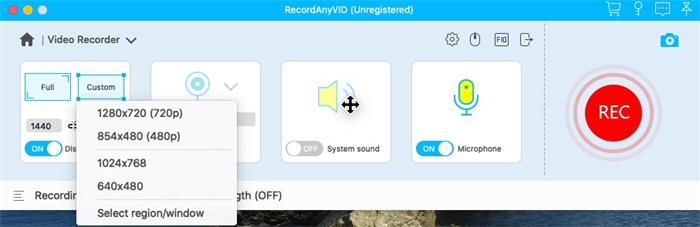
Go to Video Recorder in RecordAnyVid's main feed. Now please set the recording area accordingly. Then remember to turn on Webcam as well as both system and microphone sound for not missing recording anything of the Zoom meeting.Note: Click the setting icon above Microphone and you can enter the Preferences section for editing the recording.
STEP 3. Record Zoom Meeting and Save
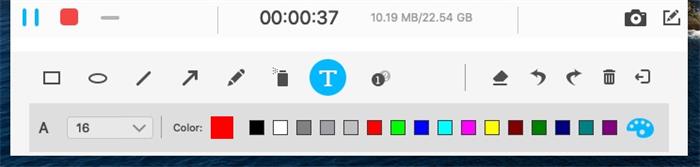
When settings are done, hit REC button to starting recording when the Zoom meeting starts. During the recording, you can make some notes using the drawing panel provided by RecordAnyVid. Finally, when the meeting is over, stop recording and save it locally.Part 3. More Solutions to Record Zoom Meeting with Audio on Windows/Mac
Except for RecordAnyVid, more solutions can be applied to record Zoom meeting with audio on both Windows and Mac. I am going to introduce you the other 4 tools you can try to record Zoom meeting with audio easily.#1. Xbox Game Bar
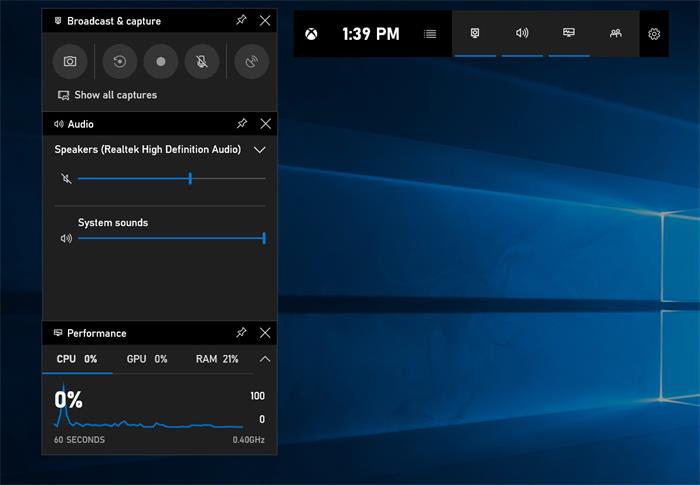
If you are an Xbox game player, you must know that for Windows player, Xbox launched a game bar, called Xbox Game Bar that players can use freely to capture their gaming videos. So if you have already installed Xbox Game Bar, you can make full use of it and record Zoom meeting without downloading any other third-party software. Just by pressing the Windows Key + G on your keyboard at the same time, you can activate Xbox Game Bar and record Zoom meeting immediately.#2. QuickTime
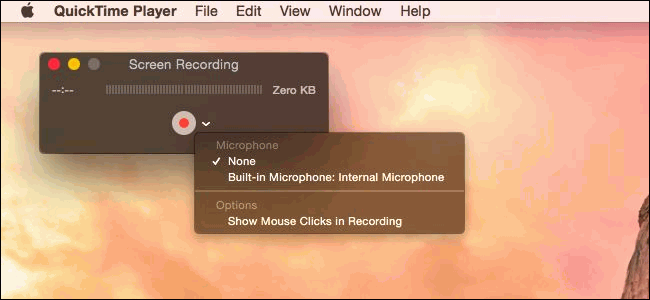
For Mac users, QuickTime Player recorder is a good choice to record Zoom meeting directly. After launching QuickTime, go to File > New Screen Recording, then the recorder will be activated and used directly. When your Zoom meeting begins, click on the REC button and QuickTime will record Zoom meeting for you. You do not have to download and install other software as well. It is quite convenient.#3. Camtasia
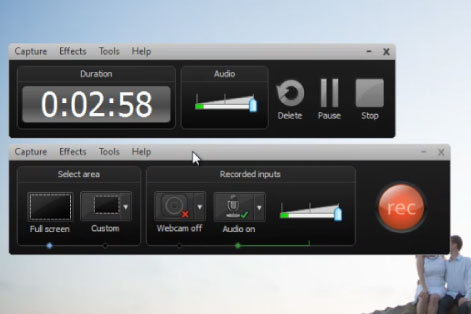
Camtasia Recorder is also an excellent screen recorder to capture Zoom meeting and other online meetings with ease. Let me introduce explicitly to you. Camtasia recorder can be started very quickly because of its user-friendly interface and functions. Also, its sparkling features make every step to be as simple as possible. So mastering the whole program is not so difficult even you are a new user. When you need to record Zoom meeting, launch the program and you can start immediately.These ways are all helpful to record Zoom meeting when you need. If you want a free control on your right to record any computer screen, I recommend you to use the third-party screen recorders, because they are all customized and you can take full control of the meeting recording.


Comments
Post a Comment