How to Convert QuickTime(MOV) File to iPhone/iPad
SOURCE: https://www.vidpaw.com/topics/mov-quicktime-to-iphone.html
This year, the new iPhone was just released since late September. Many Apple fans purchased and used the new iPhone 11, iPhone 11 Pro, and iPhone 11 Pro Max, for a while. But some issues still exist, and the most important one for video lovers is that they would get a wrong message telling them the QuickTime, which is also a MOV file, is unplayable on the phone.

The fact is that MOV file should be played using QuickTime Player, which is an application developed by Apple. How if we haven't installed the player on our new iPhone/iPad? Does it mean we have to get one if we want to play the QuickTime (MOV) video on our devices?
Absolutely not. There is a simple way to figure this problem out, which is to use a professional converter to convert the QuickTime (MOV) file to other playable formats that is supported by the iPhone/iPad you are using. Today, you can get two methods. Just read them below now!
CONTENTS
Method 1. Convert QuickTime(MOV) Files to iPhone/iPad Using iTunes
Method 2. Use MOV to iPhone/iPad Converter to Transfer the File
[Extended Reading] Why MOV Is Not Supported on iPhone/iPad
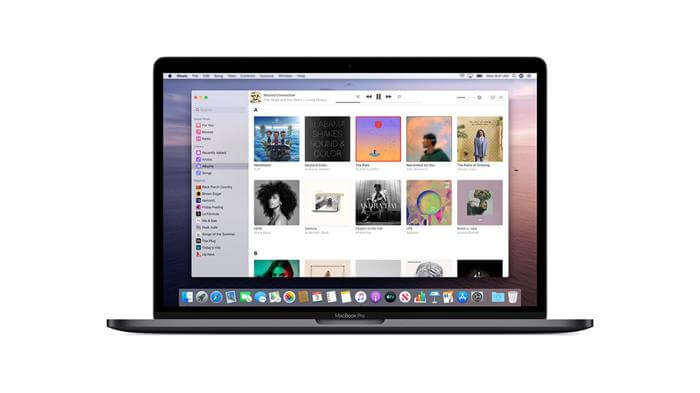
But does anybody know that iTunes can also perform as a free video converter? Actually, iTunes also features the special hidden function in which people can use it for converting the format of video to a compatible one for using on other devices as well as players. Therefore, if you have installed iTunes and want to make full use of it by digging out this function, letting your MOV video converted to other compatible formats such as MP4 for playing on iPhone/iPad, you should not miss this tutorial.
In the following, the detailed steps on how to convert MOV files to iPhone/iPad using iTunes will be introduced.
STEP 1. First, please go to the iTunes on your PC, then on the menu bar, you should navigate to File > Add File to Library. After adding the MOV video, then you would be turned to the iTunes Library, where the added video and audio will be stored.
STEP 2. On the left side of the interface, there is a navigation bar that has divided the Library into multiple detailed sections. From the list, you need to find Movies, so all the videos would be presented to you on the right side.
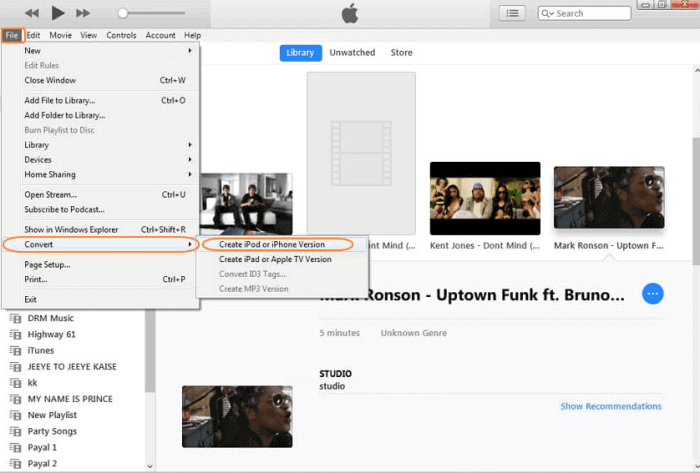
STEP 3. In the next, please select the MOV video that you have added to iTunes Library but want to convert to MP4 for playing back on iPhone/iPad. Then go to File > Convert. If you need to play it on the iPhone, select Create iPod or iPhone Version. If on iPad, choose to Create iPad or Apple TV Version option.
STEP 4. When you have selected an option above, iTunes will begin to convert the QuickTime (MOV) format to the one that iPhone/iPad supports. After the conversion is done, just get the converted file and transfer it to your iPhone/iPad for playing freely!
Video Converter Ultimate enjoys a high reputation among its large user group, and it is still growing rapidly. As a professional video converter, the compatible formats of Video Converter Ultimate can be counted to 200+ different ones, which include many popular formats like AVI WMV, M4V, and MP4. For both Windows and Mac users, Video Converter Ultimate would present its most outstanding performance to you.

Another sparkling feature of Video Converter Ultimate should be its output quality. To guarantee users with the best video streaming experience, the output quality that it provides can be really high, 4K, 1080p HD, 720p HD, which are all supported by this software. What's more, Video Converter Ultimate is equipped with an acceleration technology, allowing the converting speed to reach 50 times faster.
STEP 1. Download and Install Video Converter Ultimate
First, please go to the official website of VidPaw, where you can find Video Converter Ultimate product page. Then choose Win/Mac version according to which you are using now. You are recommended to choose the free trial version for experiencing.
STEP 2. Import QuickTime(MOV) File to Video Converter Ultimate
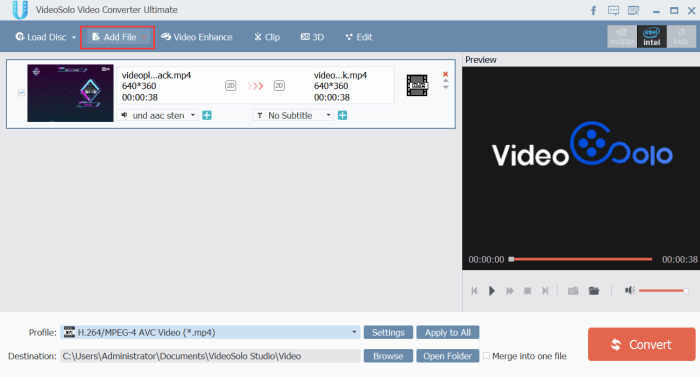
After Video Converter Ultimate is installed, open the program and you need to import the QuickTime (MOV) file that you want to convert for playing on iPhone/iPad. Click on Add File on the top left corner and a window will pop up.
Then you are allowed to select the QuickTime file that you want to convert from the folder on your computer. After selecting the file, tap Open to submit importing your QuickTime file to Video Converter Ultimate.
(Optional) STEP 3. Edit the Video
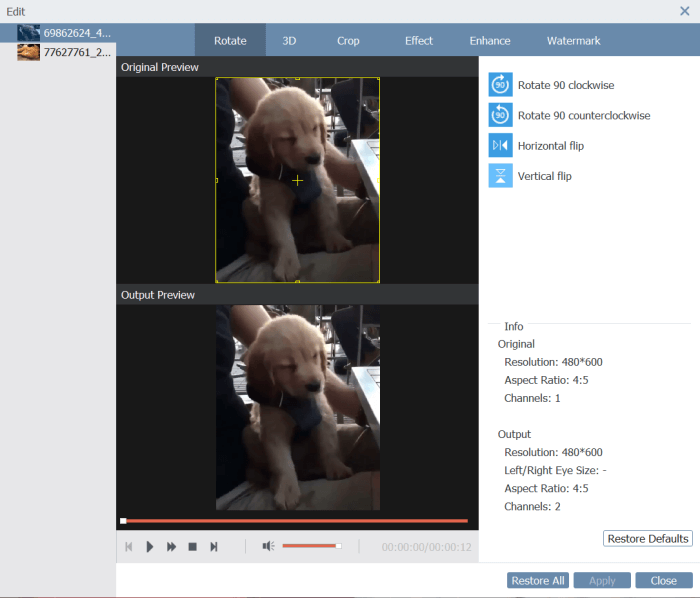
To make users have a better outcome for getting a perfect converted video, Video Converter Ultimate provides some simple video editing tools such as Edit, Enhance, and Clip for you to adjust the video.
So after you add the QuickTime file to Video Converter Ultimate, you can customize the video according to your need before entering into the next step.
STEP 4. Select Output Format
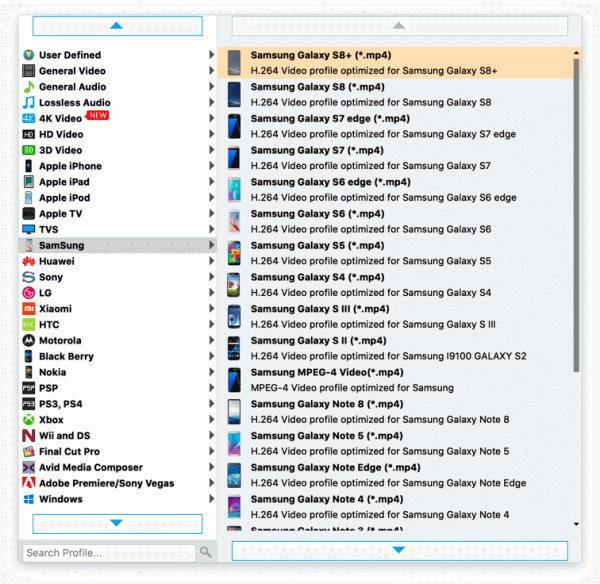
Now it's the turn to select output format. From the bottom of the user interface of Video Converter Ultimate Video Converter, you will find Profile section where you can choose one output format.
Browse the format menu, and you would discover that Video Converter Ultimate has sorted the formats well. So you can just choose the iOS device where you want to play the QuickTime file on.
Subsequently, you click Settings on the right side and you can make other settings before converting the video.
STEP 5. Convert QuickTime(MOV) to iPhone/iPad
Then also move to Destination below Profile if you want to choose an output folder for saving the converted files to a certain place. After the selection, the very final task is just to click on Convert on the right so you can easily convert the QuickTime(MOV) file to iPhone/iPad easily.
1. You can't save a copy
If you use iTunes to convert the existing QuickTime(MOV) file to iPhone/iPad, the original video would be covered, which means that you will lose the contents stored before after iTunes sync and transfer the converted video to your iPhone/iPad.
2. Only one file can be converted at once
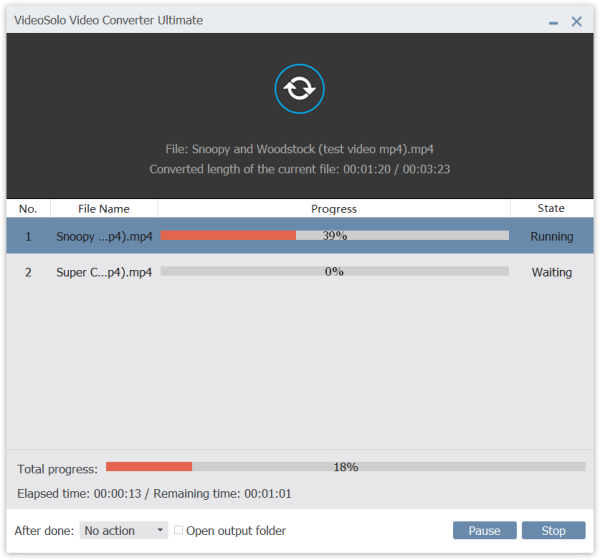
As you can notice from the operating steps stated above, for each QuickTime(MOV) file that you want to convert, you have to manually follow the procedures one-by-one. If you get more files wanted to be converted, this would be quite troublesome. But Video Converter Ultimate full version allows batch conversion, which will be more convenient.
Although iTunes conversion would have certain limitations, which selection you prefer are based on personal choice. But both of the methods are workable. So if you are bothered by the situation that the QuickTime(MOV) is unplayable on iPhone/iPad, try any of them to solve the problem.
This year, the new iPhone was just released since late September. Many Apple fans purchased and used the new iPhone 11, iPhone 11 Pro, and iPhone 11 Pro Max, for a while. But some issues still exist, and the most important one for video lovers is that they would get a wrong message telling them the QuickTime, which is also a MOV file, is unplayable on the phone.
The fact is that MOV file should be played using QuickTime Player, which is an application developed by Apple. How if we haven't installed the player on our new iPhone/iPad? Does it mean we have to get one if we want to play the QuickTime (MOV) video on our devices?
Absolutely not. There is a simple way to figure this problem out, which is to use a professional converter to convert the QuickTime (MOV) file to other playable formats that is supported by the iPhone/iPad you are using. Today, you can get two methods. Just read them below now!
CONTENTS
Method 1. Convert QuickTime(MOV) Files to iPhone/iPad Using iTunes
Method 2. Use MOV to iPhone/iPad Converter to Transfer the File
[Extended Reading] Why MOV Is Not Supported on iPhone/iPad
Method 1. Convert QuickTime(MOV) Files to iPhone/iPad Using iTunes
For people who own an iPhone/iPad, they must be familiar with iTunes, a program that is used to manage the data of the device after connection. It can also be used to back up the data for preventing the loss of it. iTunes is also a great media player, which has been equipped with a library where users can store their media content inside such as videos, music, audiobooks, etc.But does anybody know that iTunes can also perform as a free video converter? Actually, iTunes also features the special hidden function in which people can use it for converting the format of video to a compatible one for using on other devices as well as players. Therefore, if you have installed iTunes and want to make full use of it by digging out this function, letting your MOV video converted to other compatible formats such as MP4 for playing on iPhone/iPad, you should not miss this tutorial.
In the following, the detailed steps on how to convert MOV files to iPhone/iPad using iTunes will be introduced.
STEP 1. First, please go to the iTunes on your PC, then on the menu bar, you should navigate to File > Add File to Library. After adding the MOV video, then you would be turned to the iTunes Library, where the added video and audio will be stored.
STEP 2. On the left side of the interface, there is a navigation bar that has divided the Library into multiple detailed sections. From the list, you need to find Movies, so all the videos would be presented to you on the right side.
STEP 3. In the next, please select the MOV video that you have added to iTunes Library but want to convert to MP4 for playing back on iPhone/iPad. Then go to File > Convert. If you need to play it on the iPhone, select Create iPod or iPhone Version. If on iPad, choose to Create iPad or Apple TV Version option.
STEP 4. When you have selected an option above, iTunes will begin to convert the QuickTime (MOV) format to the one that iPhone/iPad supports. After the conversion is done, just get the converted file and transfer it to your iPhone/iPad for playing freely!
Method 2. Use MOV to iPhone/iPad Converter to Transfer the File
After testing, iTunes can work really well for converting MOV to iPhone/iPad because most people have installed this software. But iTunes isn't the most professional tool for video format conversion. Therefore, we would also like to introduce another reliable and advanced video converter this blog for you to convert QuickTime (MOV) to iPhone/iPad, which is Video Converter Ultimate.Video Converter Ultimate enjoys a high reputation among its large user group, and it is still growing rapidly. As a professional video converter, the compatible formats of Video Converter Ultimate can be counted to 200+ different ones, which include many popular formats like AVI WMV, M4V, and MP4. For both Windows and Mac users, Video Converter Ultimate would present its most outstanding performance to you.
Another sparkling feature of Video Converter Ultimate should be its output quality. To guarantee users with the best video streaming experience, the output quality that it provides can be really high, 4K, 1080p HD, 720p HD, which are all supported by this software. What's more, Video Converter Ultimate is equipped with an acceleration technology, allowing the converting speed to reach 50 times faster.
How to Convert QuickTime(MOV) File to iPhone/iPad Format
If you are fascinated about this amazing software, just take a few time to see how you can convert the QuickTime (MOV) file to iPhone/iPad format!STEP 1. Download and Install Video Converter Ultimate
First, please go to the official website of VidPaw, where you can find Video Converter Ultimate product page. Then choose Win/Mac version according to which you are using now. You are recommended to choose the free trial version for experiencing.
STEP 2. Import QuickTime(MOV) File to Video Converter Ultimate
After Video Converter Ultimate is installed, open the program and you need to import the QuickTime (MOV) file that you want to convert for playing on iPhone/iPad. Click on Add File on the top left corner and a window will pop up.
Then you are allowed to select the QuickTime file that you want to convert from the folder on your computer. After selecting the file, tap Open to submit importing your QuickTime file to Video Converter Ultimate.
(Optional) STEP 3. Edit the Video
To make users have a better outcome for getting a perfect converted video, Video Converter Ultimate provides some simple video editing tools such as Edit, Enhance, and Clip for you to adjust the video.
So after you add the QuickTime file to Video Converter Ultimate, you can customize the video according to your need before entering into the next step.
STEP 4. Select Output Format
Now it's the turn to select output format. From the bottom of the user interface of Video Converter Ultimate Video Converter, you will find Profile section where you can choose one output format.
Browse the format menu, and you would discover that Video Converter Ultimate has sorted the formats well. So you can just choose the iOS device where you want to play the QuickTime file on.
Subsequently, you click Settings on the right side and you can make other settings before converting the video.
STEP 5. Convert QuickTime(MOV) to iPhone/iPad
Then also move to Destination below Profile if you want to choose an output folder for saving the converted files to a certain place. After the selection, the very final task is just to click on Convert on the right so you can easily convert the QuickTime(MOV) file to iPhone/iPad easily.
[Extended Reading] Comparison Between iTunes and Video Converter Ultimate
After going through the ways to convert QuickTime(MOV) formats to the one that iPhone/iPad supports, we would also like to mention as a supplement suggestion for you to choose a more suitable method to convert MOV to iPhone/iPad. Actually, using iTunes to convert has three limitations, which may lead to inconvenience:1. You can't save a copy
If you use iTunes to convert the existing QuickTime(MOV) file to iPhone/iPad, the original video would be covered, which means that you will lose the contents stored before after iTunes sync and transfer the converted video to your iPhone/iPad.
2. Only one file can be converted at once
As you can notice from the operating steps stated above, for each QuickTime(MOV) file that you want to convert, you have to manually follow the procedures one-by-one. If you get more files wanted to be converted, this would be quite troublesome. But Video Converter Ultimate full version allows batch conversion, which will be more convenient.
Although iTunes conversion would have certain limitations, which selection you prefer are based on personal choice. But both of the methods are workable. So if you are bothered by the situation that the QuickTime(MOV) is unplayable on iPhone/iPad, try any of them to solve the problem.


Comments
Post a Comment